Reeldo AIReeldo AI

AI Motion Control · Powered by Kling 3.0

AI Motion Control: Transfer a Reference Performance to Your Character

Upload a character photo and a motion clip—your mascot, avatar, or illustration performs the reference with no rigging. Pick Video or Image orientation, leave the prompt empty for motion-only, and confirm total credits on Generate.

Try the AI Motion Control Generator

Upload a character photo and one motion clip — credits show on Generate before you run.

  1. 1Character
  2. 2Motion clip
  3. 3Generate

Character

JPG/PNG · head, shoulders, and torso visible · min 340px · aspect 2:5–5:2.

Motion reference

MP4/MOV · 3–30s · single performer · head, shoulders, and torso in frame.

Add motion clip
Paste TikTok / Reels link, or upload MP4 · 2–10sChecking sign-in…

Character orientation

Output quality

~14 credits/s · 720p · length follows clip

More info

Output length follows your motion clip. Complex motion may shorten the result (Kie). Framing follows the clip and orientation — not a separate aspect setting.

~USD uses Max yearly $/credit (best subscription rate). Monthly plans or one-time credit packs cost more per clip.

Add a character photo to continue.

Preview

Your character will follow the motion reference.

Output16:9 · 5s · 720p
16:9 · 5s · 720p

Specifications

Length follows reference clipVideo 30s · Image 10s ref720p or 1080p~14–19 credits/s · total on GenerateSingle performer works best

What is AI motion control

AI motion control on Reeldo pairs a character image with a motion reference video (powered by Kling 3.0). The model transfers body movement to your character — not video restyling (see Video to Video). Framing and length follow the reference clip; there is no separate aspect-ratio control.

How to Use AI Motion Control (4 Steps)

Matches the generator above — use this checklist if you are new or hit errors.

  1. Step 1

    Character photo

    JPG/PNG with visible head, shoulders, and limbs. One subject.

  2. Step 2

    Motion clip or link

    Upload MP4/MOV or import a TikTok/Reels link — one clear performer.

  3. Step 3

    Orientation + quality

    Video (follow clip, up to 30s ref) or Image (follow photo, up to 10s ref). 720p to test, 1080p to deliver.

  4. Step 4

    Optional prompt → Generate

    Leave prompt empty for motion-only. Total credits appear on the button before you run.

  5. Back to generator
Video orientation
Ref ≤30s
Full-body dance reference clip for video orientation
Motion ref
Mascot performing the same dance after motion control
Output

Performance follows the reference clip. Use for dance and full-body motion (reference up to 30s).

Image orientation
Ref ≤10s
Portrait character photo for image orientation
Photo
Chest-up gesture reference for image orientation
Gesture ref
Avatar with transferred presenter gestures
Output

Performance follows your still photo framing. Use for portraits and chest-up gestures (reference up to 10s).

Character

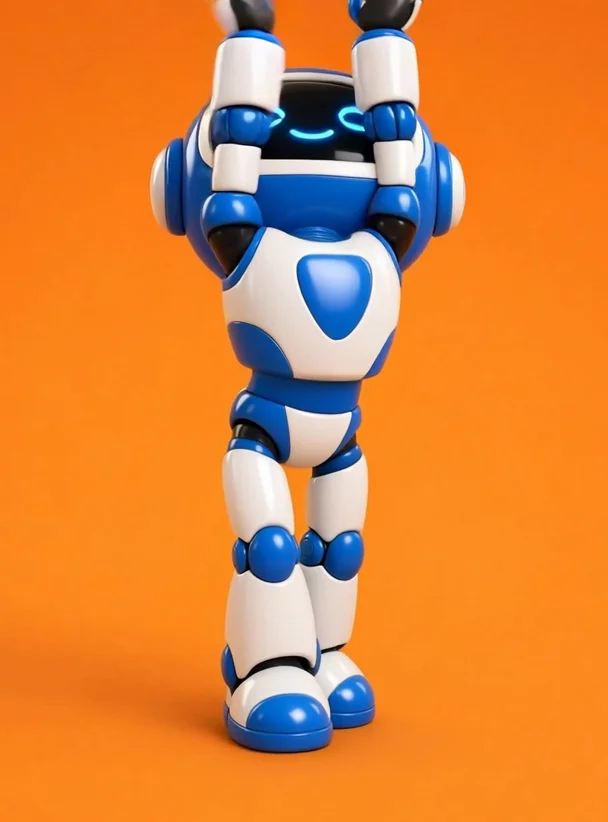
Motion control example: robot mascot character plus human dance reference producing mascot choreography

Motion clip

Human performer · Lisa Sawadika chorus

Output

How AI Motion Control Works: Photo + Motion Clip

You supply who should appear and a real performance to copy. Kling 3.0 maps joints, timing, and gestures onto your character.

  1. 1Upload the character still (photo, mascot, or illustration).
  2. 2Upload or import one motion clip — single performer; Video orientation up to 30s, Image up to 10s.
  3. 3Choose Video or Image orientation, 720p/1080p, optional prompt, then Generate — total credits shown first.

Common Motion Control Mistakes (and Fixes)

Most wasted credits come from the wrong tool mode or messy reference footage — not from Kling itself.

Used Video to Video to change style

“I wanted my mascot to dance but the background and outfit changed completely.”

Use this page for motion transfer. To relight or swap backgrounds on an existing clip, open Video to Video (Aleph / Kling / Seedance tiers).

Credits gone before a usable take

“I ran 1080p on a messy 25s clip three times.”

Start with 720p and a 5–10s clean reference. Use Image orientation for chest-up clips (10s cap). Check total credits on Generate before you run.

Reference video was hard to track

“Two dancers, heavy motion blur, and crossed arms — limbs melted.”

Single person, stable camera, visible limbs, even lighting. Avoid crowd scenes and fast whip pans.

Background moved on its own

“The character moved right but the set drifted like a new scene.”

Motion Control prioritizes performance transfer — environment largely follows the reference. Change backgrounds afterward with Video to Video if needed.

Motion Control Examples: Mascot, Avatar & Illustration

Each row shows character + motion inputs and the generated output. Framing follows your reference clip.

Example 01 / 03

Brand mascot character still image

Character

Reference dance choreography video

Motion

Output

AI motion control — mascot performing trend dance

Trend dance on a mascot

Copy a viral dance onto your brand character for TikTok or Reels.

720p · Video orientation · vertical ref for 9:16

Optional prompt

Optional prompt

Keep outfit colors from the character image. Match the dance energy; do not change the background style.

Example 02 / 03

Avatar portrait image

Character

Presenter gesture reference video

Motion

Output

Virtual avatar with transferred presenter gestures

Presenter gestures on an avatar

Transfer hand and body language from a presenter clip to a portrait or virtual spokesperson.

1080p · Image orientation · ≤10s chest-up ref

Optional prompt

Optional prompt

Preserve face identity. Natural presenter gestures only.

Example 03 / 03

Illustrated character artwork

Character

Full-body dance reference clip

Motion

Output

Illustrated character following human dance reference

Illustrated character moves

Preview how concept art or game art moves using human choreography reference.

720p · full-body

Optional prompt

Optional prompt

Keep illustration style flat-shaded. No photoreal skin.

More scenarios
  • Same motion — multiple characters

    Reuse one winning clip across different character images for ad tests.

  • 9:16 mascot hook

    Short vertical gesture or dance for paid social scroll-stoppers.

  • Action on a stylized hero

    Single-subject stunt or sports reference on a hero still — not multi-person fights.

Motion Reference Tips (Do & Don't)

Good motion reference — single dancer, clear silhouette

Do

  • One person, stable camera, visible limbs
  • Match framing — full-body art with full-body dance
  • Test at 720p on a 5–10s clip first
Bad motion reference — crowded scene and motion blur

Avoid

  • Crowds, heavy occlusion, or crossed arms
  • Using Video to Video when you need motion transfer
  • Expecting independent background control

AI Motion Control Limits, Orientation & Credits

Facts for planning — matches the generator (Kling 3.0 backend on Kie).

AI Motion Control Limits, Orientation & Credits
InputOn ReeldoNotes
Character imageJPG / PNG uploadMin ~300px per side; front-facing or full-body reads best.
Motion referenceMP4 / MOV / WebM or social importOne performer; clear limbs; stable camera.
Character orientationVideo or Image (generator toggle)Video: follow clip (ref up to 30s). Image: follow photo (ref up to 10s).
Clip lengthFollows reference (Kie may shorten complex motion)Video orientation: 3–30s ref. Image orientation: 3–10s ref.
Quality720p or 1080pNo separate aspect control — framing follows the reference clip.
CreditsTotal shown on Generate~14/s at 720p, ~19/s at 1080p (reference length; Kie input+output billing).
Multi-person scenesSingle subject recommendedNot a replacement for mocap or multi-actor fight choreography.

Motion Control vs other Reeldo video modes

Pick the mode that matches what you need to preserve.

Motion Control vs other Reeldo video modes
FeatureMotion ControlText / image to videoVideo to video
Primary inputCharacter image + motion videoText prompt or start frameSource clip + edit prompt
What stays lockedCharacter look + reference performanceCreative scene from promptSource timing & motion, new look
Best forDance, gestures, mascot animationNew scenes from scratchRelight, background swap, style edits

When to Use Motion Control vs Text-to-Video

Motion control copies performance. Text and image modes create new scenes; Video to Video restyles an existing clip.

Diagram comparing motion control, text-to-video, and video-to-video edit

AI Motion Control (this page)

Character image + motion clip → same choreography on your subject.

Text / image to video

New scenes from prompts or a start frame.

Open text to video →

Video to video edit

Keep source motion — change look, light, or background.

Open video to video →

AI Motion Control FAQ

What is AI motion control on Reeldo?

How is this different from Video to Video?

When should I use Video vs Image orientation?

How long can the motion reference be?

How many credits does motion control cost?

Can I use two people in the reference video?

What character photo works best?

Can I control the background separately?

Can I use outputs commercially?

Can I use someone else’s dance video as reference?

Try motion control

Upload character + motion, pick orientation and quality — total credits on Generate before you run.